Fewer “where’s my order?” calls
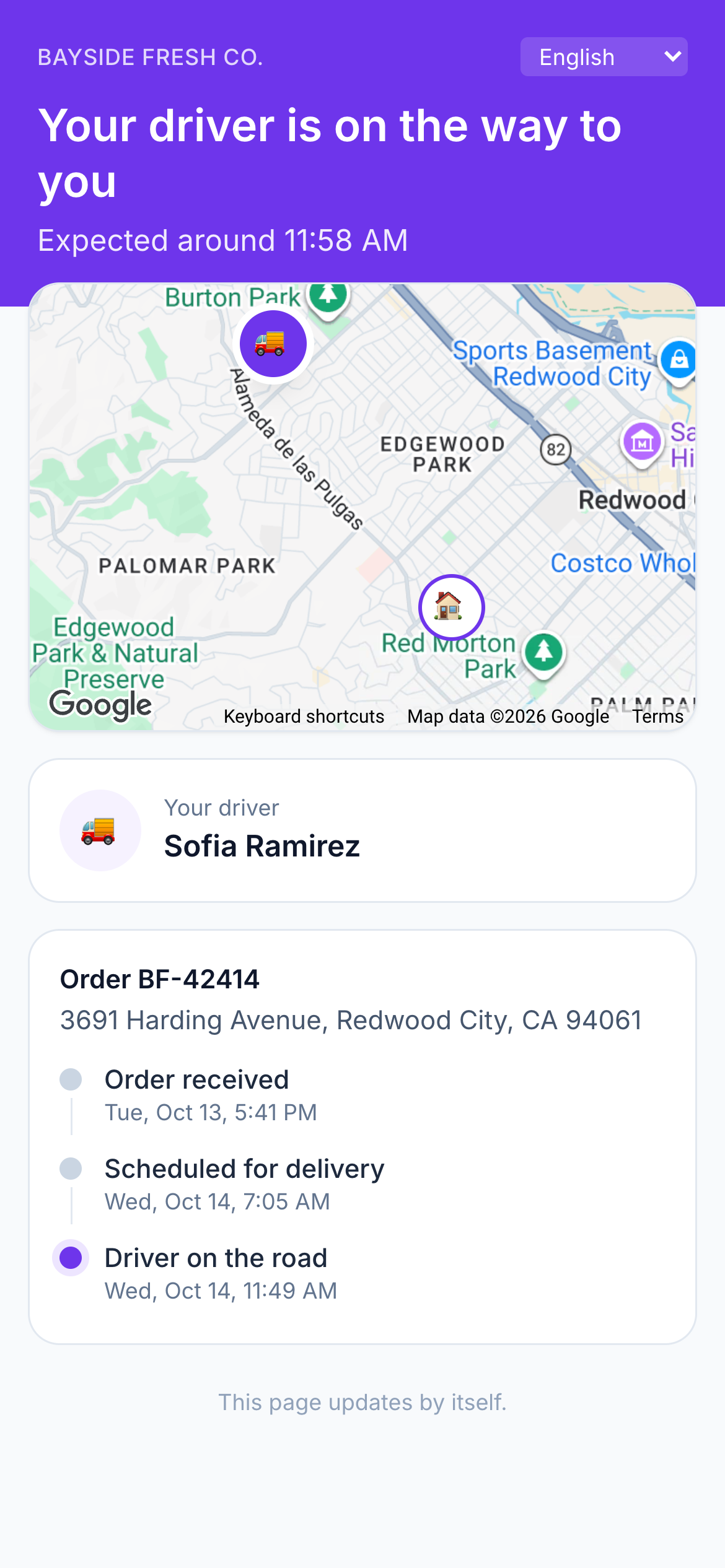
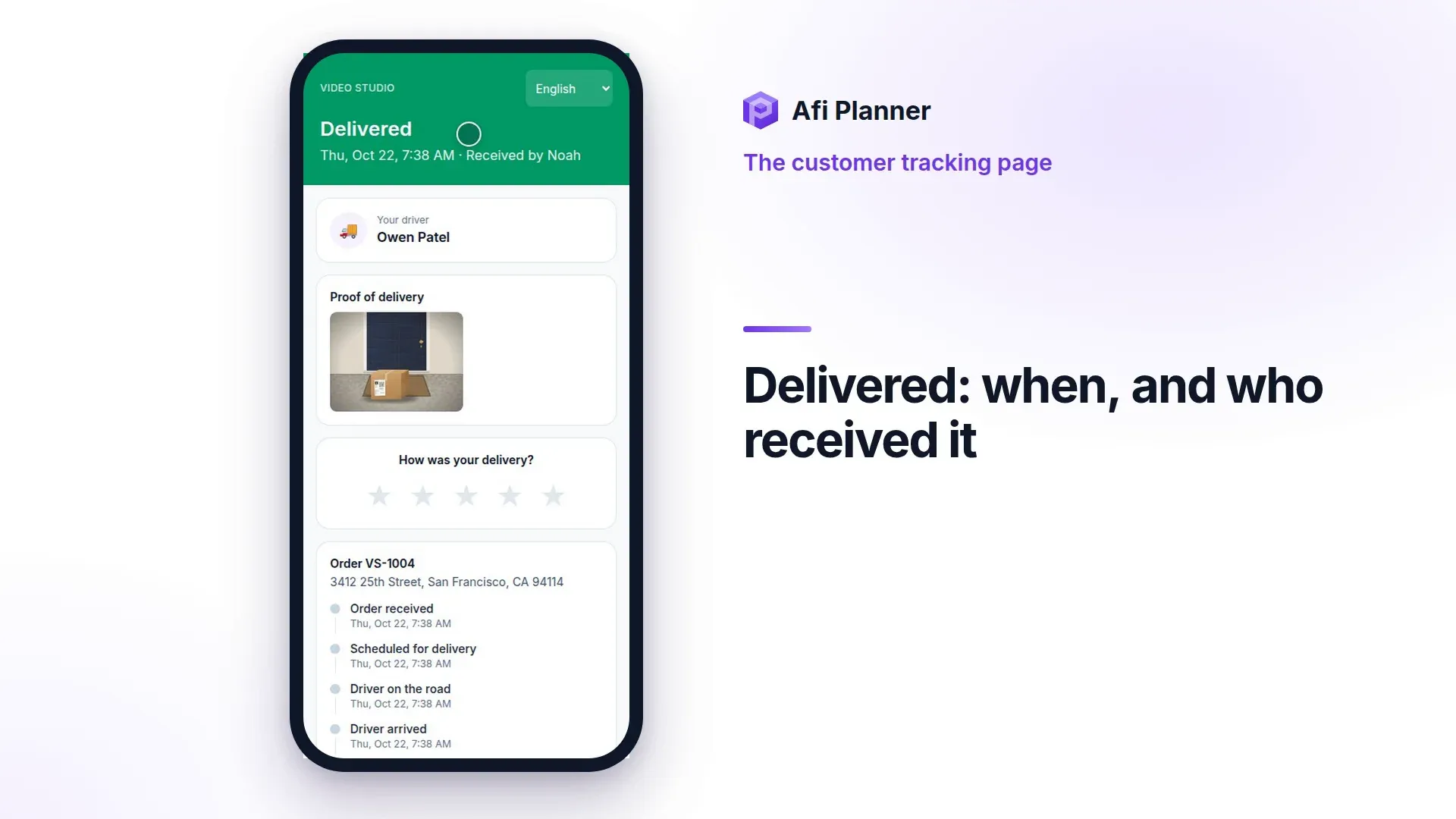
Every order gets its own tracking page. Customers see when their delivery is planned, follow the driver when they’re next, leave instructions and rate the delivery. Messages go out automatically at each step.
Live, honest ETAs
Customers get a time window when the route is sent and a new message only if the live ETA moves by more than you allow.
Your channels
Email, SMS through your own Twilio account and WhatsApp through your WhatsApp Business account, so you keep your numbers and your rates.
Feedback that matters
Star ratings and comments flow into Analytics next to each driver’s results.
A tracking page customers actually use
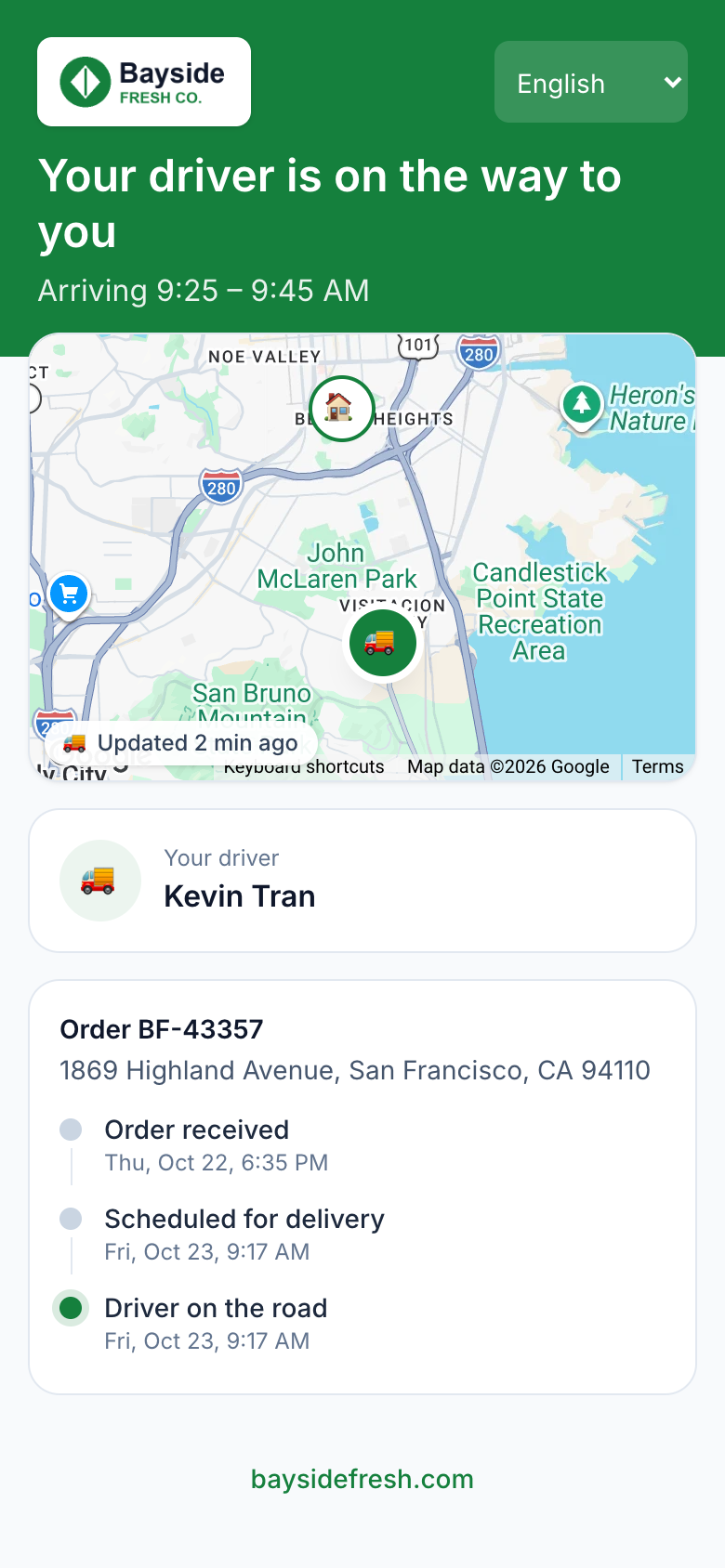
A status timeline from order received to delivered, the driver’s name and position only while they are heading to that customer, photos after delivery and a one-tap rating.
- Delivery instructions and “leave at the door” (offered only when the order needs no signature), which customers can change until the driver is on the way; the driver hears about it at once
- “Loaded on the van” as a step, once the driver’s load check put it there
- Let customers pick another delivery day before the driver heads their way (you turn it on and set the limit); if the route was already sent, the driver is told at once and the stop leaves their to-do list
- In English, Spanish, Vietnamese or Swedish, and customers can switch
- Your support phone, email and hours in a “Contact” card (your dispatch number never appears)
Your brand, not ours
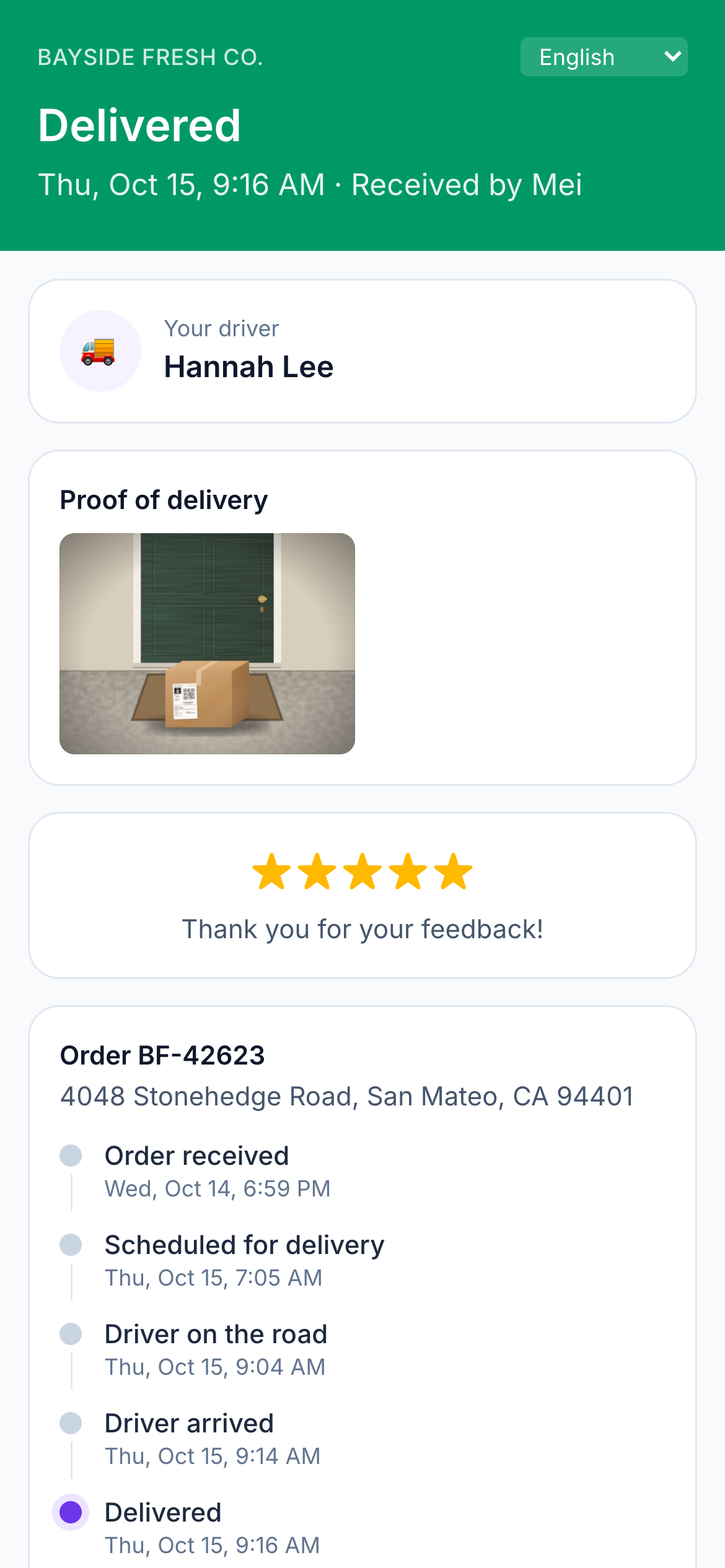
Add your logo, brand color and website in Settings → Customers → Branding. The tracking page puts your logo on top, takes your color for its header and buttons and links your website at the bottom; customer emails carry the same logo, color and website. Preview with a sample order shows the page as a customer will see it before you save.
- Logo as PNG, JPEG or WebP, up to 1 MB
- A white or light logo sits on a dark or brand-color background, on the tracking page and in emails
- A light brand color gets dark text, so the page always stays readable
- On the free trial, the page shows your logo and color from day one; the website link and the logo in emails appear once you are on a paid plan
A failed delivery gets a way forward
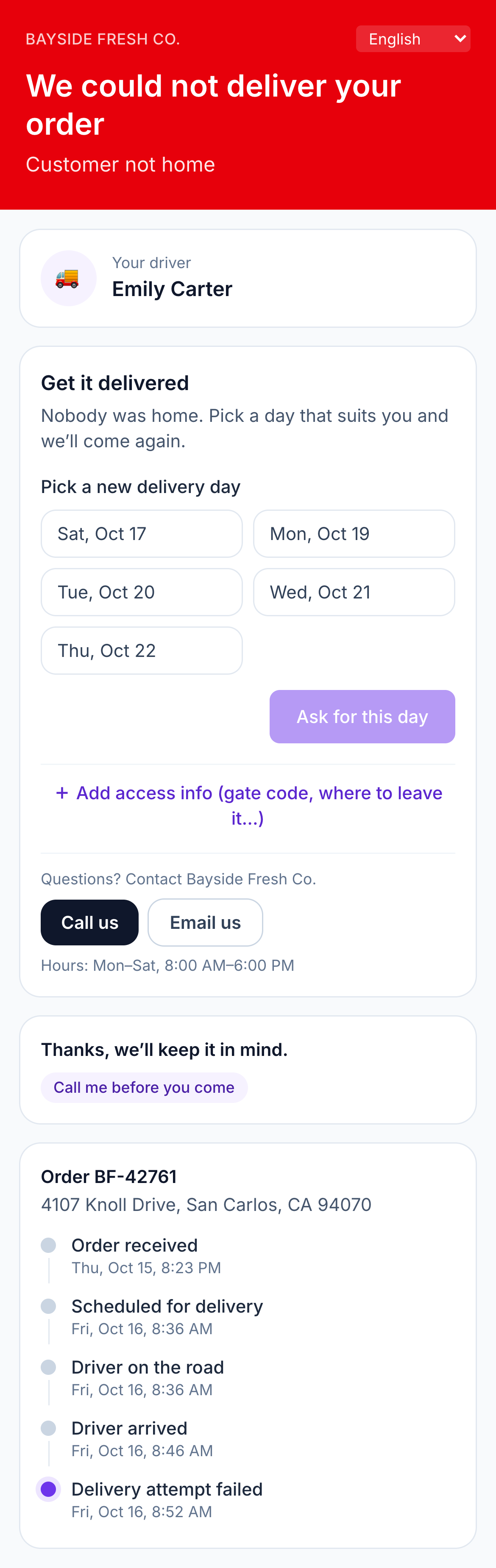
The “not delivered” text and email say what happened and what the customer can do about it: nobody home, pick another day; couldn’t get in, add a gate code; couldn’t find the address, check the pin and tell the driver how to find them. The tracking page shows the same under “Get it delivered”, with your support contact. The day they pick waits for a dispatcher to approve it in Needs attention.
- One tracking link for every attempt: the page says “Attempt 2 of 2”
- The next attempt keeps the gate code and notes, and the driver sees why the last one failed
- When a driver’s day ends before their stop, customers hear “We couldn’t get to you today” and can pick another day; the page says “Not delivered today”
- “Tell us what would help” replaces the star rating after a failed attempt
Messages at the right moments
Scheduled, on the way, ETA changed, delivered or not delivered: switch each message on or off. Messages go out in your customers’ language (English, Spanish, Vietnamese or Swedish), and every one links to the order’s live tracking page. Mistakes undone by the driver are corrected automatically.
- Never an older message after a newer one: no “scheduled for 9–11” after “delivered”
- Quiet hours you choose (9 PM–8 AM by default): “scheduled” and new-time messages wait until they end, in the customer’s time zone
- A customer with three orders that day gets one “scheduled” message, not three
- A preview of every text in Settings with its SMS segment count, so you see what each one costs
Step-by-step guides
Questions people ask
Frequently asked questions
Do I need a Twilio account for SMS?
Yes, SMS goes through your own Twilio account (you register your number for A2P 10DLC there). Email works with no setup.
Is the driver’s phone number shown?
Only if you turn it on. By default customers see the driver’s name and where they are, but not their personal number.
What happens when a delivery fails?
The customer gets a message based on the driver’s reason, with a link to “Get it delivered”: they can ask for another day, add a gate code or tell the driver how to find them. A dispatcher approves the new day in Needs attention, and the next attempt keeps the same tracking link.
More features
- Route optimizationOptimized routes that respect how your day really worksLearn more
- Dispatch & live trackingKnow what needs you before your phone ringsLearn more
- Driver appA driver app built for the curb, not the officeLearn more
- AnalyticsSee how every route really wentLearn more
- Driver pay & timesheetsDriver pay worked out from the routes they droveLearn more
- Integrations & APIConnect your systems in both directionsLearn more
- Import & addressesFrom spreadsheet to map in secondsLearn more
Plan tomorrow’s routes in the next 3 minutes
Start your free 3-month trial. No credit card, no setup call, no installation.