Drivers, vehicles, shifts and breaks
4 steps6 min read
Set up drivers once and Afi Planner reuses them every day. The Schedule decides who works on which day and when their breaks are, and each week it shows where you’re short and who can cover.
In this guide
Step 1: Add drivers
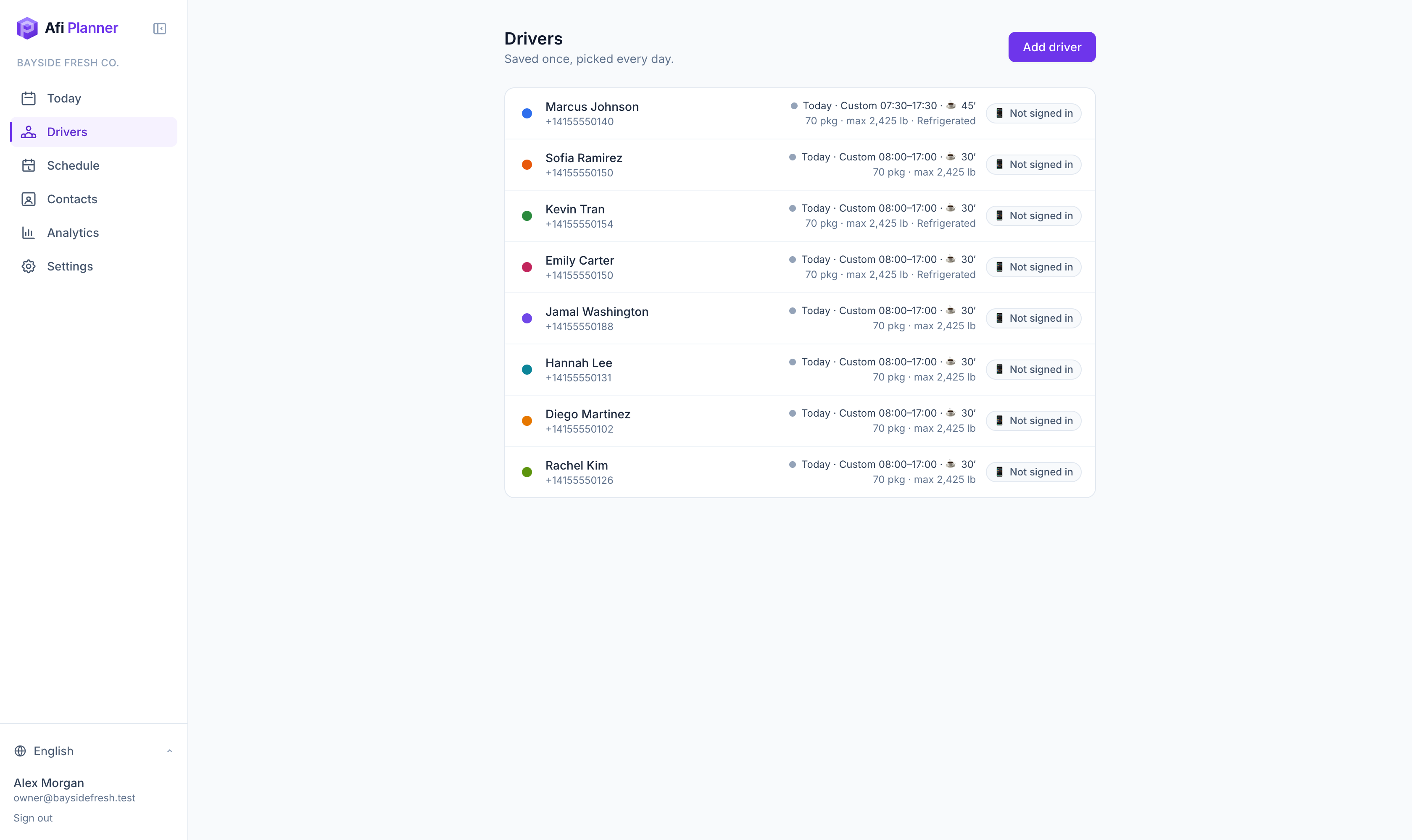
On Drivers, add each driver with a name and phone number. Everything else is optional: vehicle capacity in packages, weight and volume, skills (for example Refrigerated), a different start or end address, or a slower or faster pace.
Step 2: Create shift templates
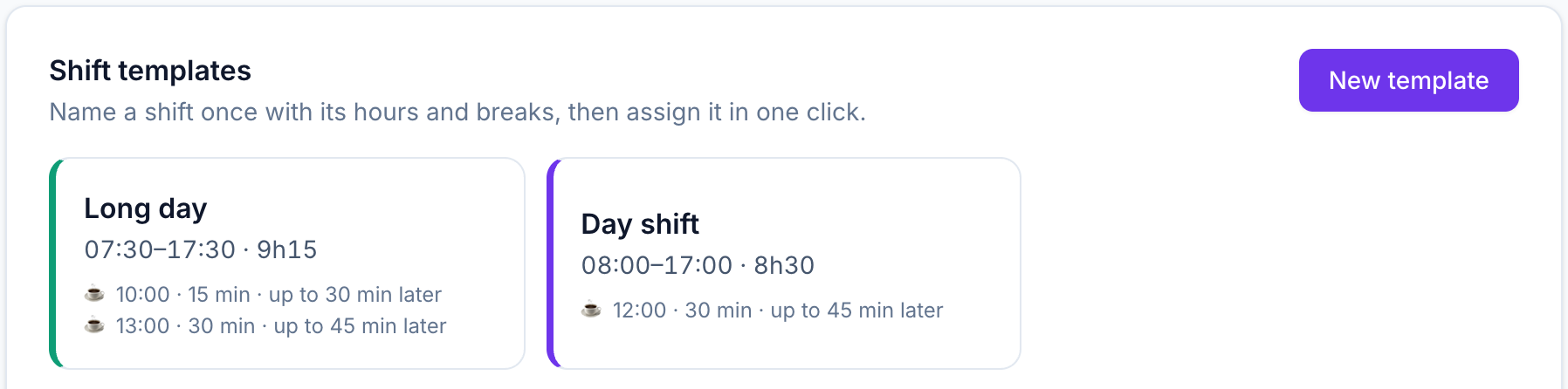
On Schedule, open ⚙ → Shift templates and create the shifts you use, such as Day shift 8:00–5:00 with a 30-minute lunch. A shift can have up to four breaks, each with some flexibility, and can be split in two parts.
Step 3: Set the usual week, then cover each week
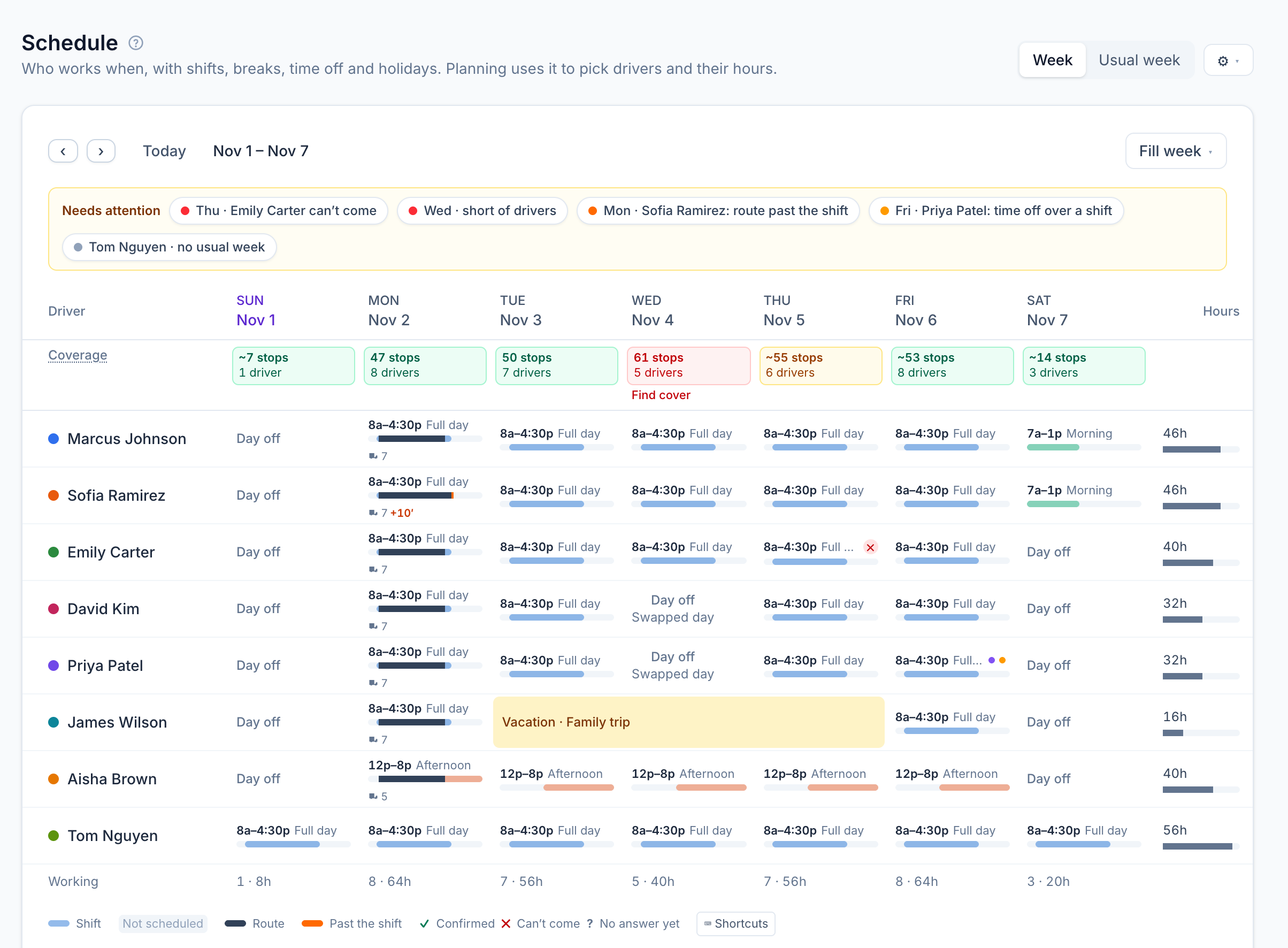
Switch the Schedule to Usual week and give each driver a shift for each weekday: pick cells (drag for a block), then click a shift or press its number; O gives a day off. Back on Week, change a single day for overtime, a day off or a different shift; the change wins over the usual week for that day. Until you set a usual week, a dashed bar shows each driver’s own hours, the ones planning uses; after that, a day without a shift says Not scheduled and planning leaves the driver out. The Coverage row under each date puts the day’s stops against the drivers working (“~” before orders come in: the average of that weekday over the last 4 weeks): green up to your usual stops per driver, amber up to 20% more, red short of drivers. Needs attention lists what to fix, such as a driver who can’t come or a route past the shift; click one to pick those cells. On a red day or a driver who can’t come, Find cover lists the drivers free that day, fewest hours this week first, and one click gives the shift. The Hours column adds up each driver’s week against the weekly overtime line from their pay plan and turns orange past it.
Tip: Fill week copies last week’s changes made by hand onto this week, or takes this week back to the usual week from today on (days already over stay as they were).
Step 4: Add time off and holidays
On Week, pick a driver’s days and press T to add time off: vacation, sick, personal or other, for whole days or part of each day. It shows as one bar across those days, and ⚙ → Time off lists everyone’s. Under ⚙ → Holidays, get your country’s national holidays as a file, mark the days you’re closed and import it. Planning leaves a driver on time off out and cuts a part-day absence out of their shift; Needs attention flags a shift that falls on time off.
Related feature
Optimized routes that respect how your day really works →