Optimized routes that respect how your day really works
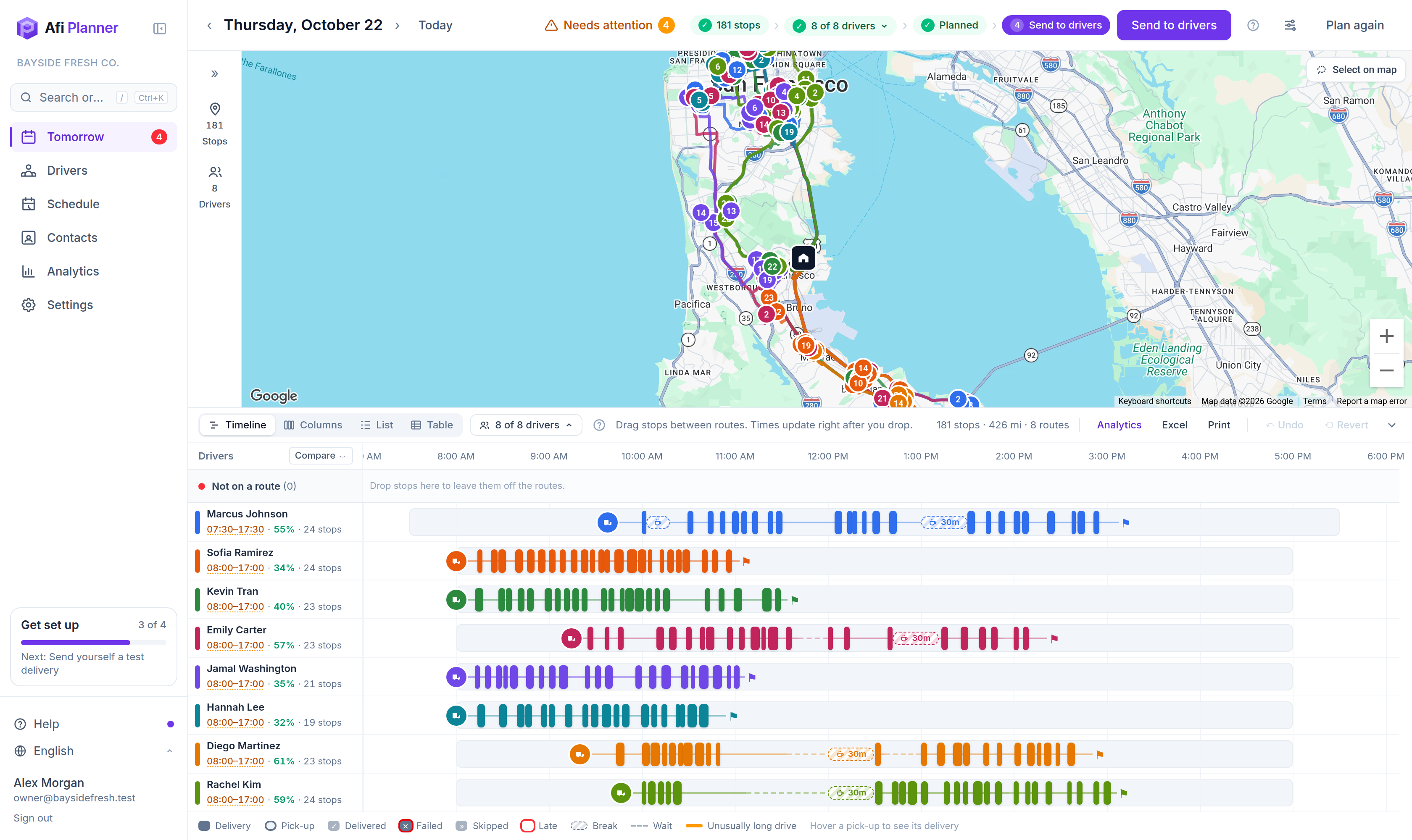
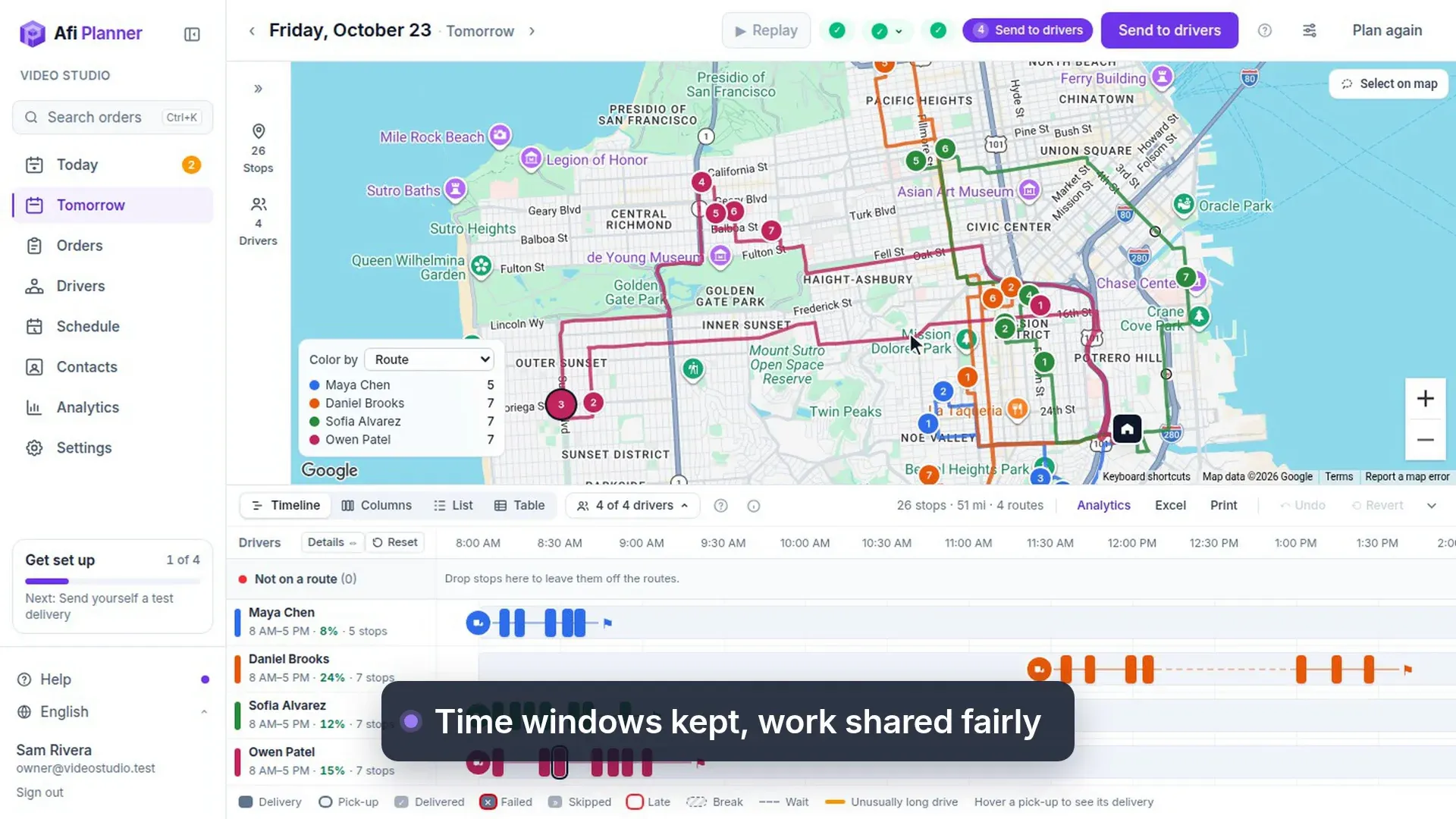
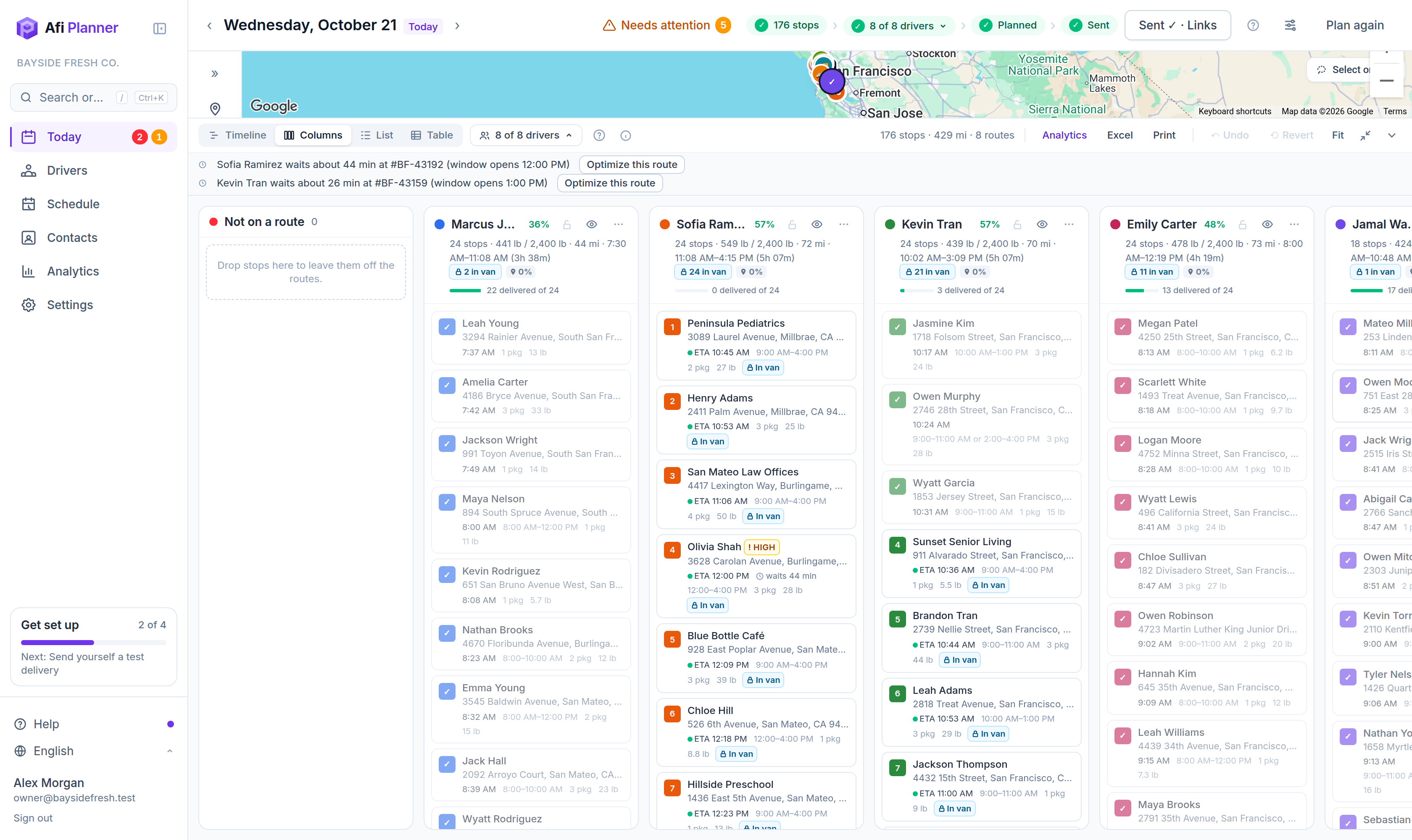
Afi Planner builds routes for every driver at once. It keeps every time window, fills each van without going over, plans breaks into each shift and shares the work fairly. A day with 176 stops and 8 drivers is planned in about 40 seconds.
Fewer miles, fewer hours
Every route is solved together, so stops go to the driver who is already nearby instead of the one who happens to be free.
Promises you can keep
Customer time windows, shift hours and breaks are part of the plan, not something a dispatcher checks by hand afterwards.
No black box
If a stop can’t fit, Afi Planner says why in plain English (“the van is full by then”) and you decide what happens to it.
Everything that makes a route real
Real delivery days have rules. Afi Planner takes all of them into account at once, so the routes you send are routes your drivers can actually drive.
- One or two time windows per order (“9–11 or 2–4”) and a service time per stop
- Vehicle limits by packages, weight and volume, in lb and ft³
- Driver shifts from the schedule, including split shifts and up to four breaks a day; drivers see the planned breaks on their route
- Skills such as refrigerated or liftgate, so the right orders go to the right van
- Orders fixed to a driver: select stops on the map, choose Assign to driver, and planning keeps them on that route
- Pickup and delivery in one route, with a limit on time in the vehicle
- High-priority orders that are planned first when the day is full
A week schedule that shows where you’re short
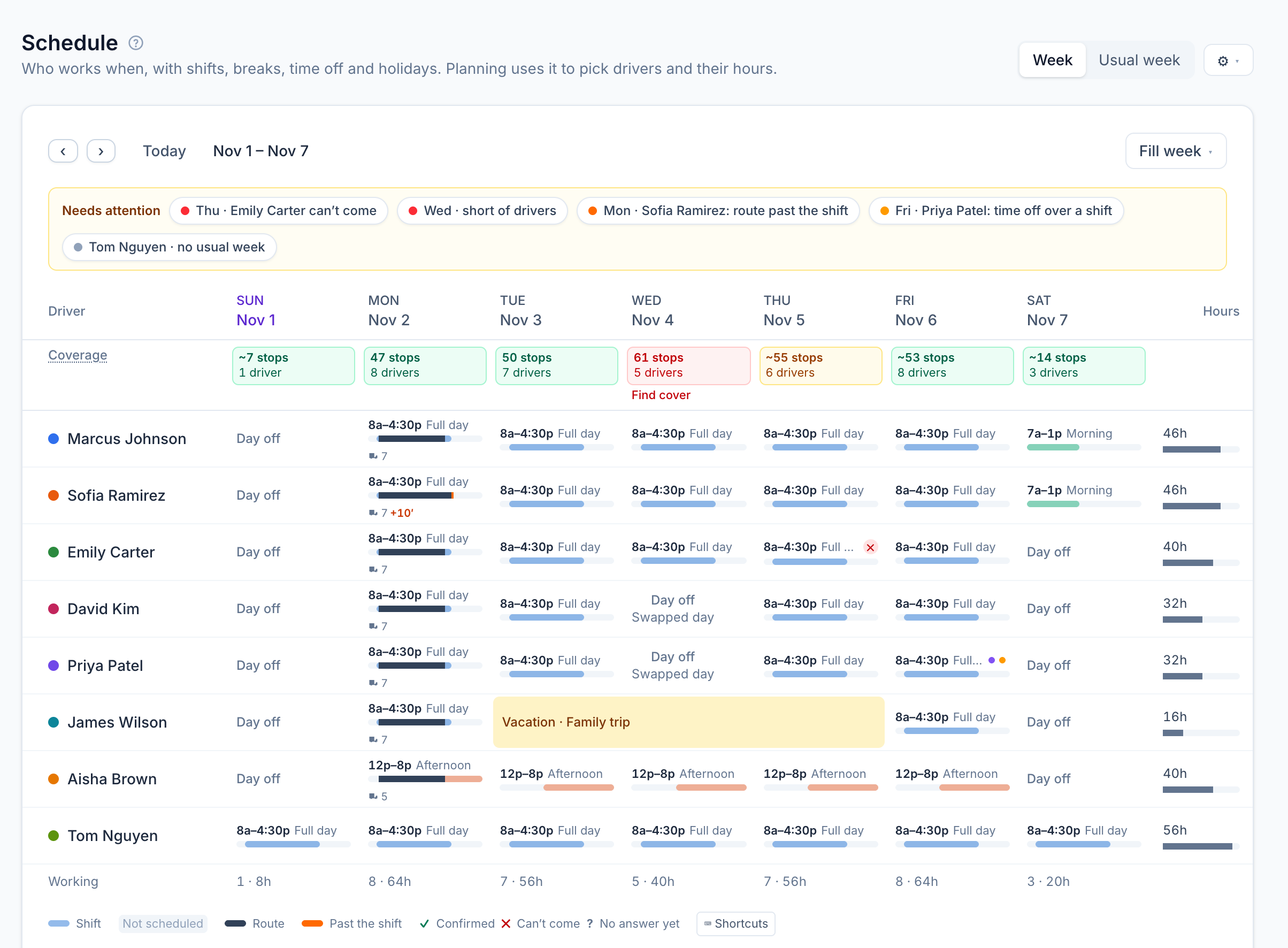
The Schedule shows the week the way planning will use it: each shift as a bar with its route inside, time past the shift in orange, time off as one bar across its days. Coverage under each date puts the day’s stops against the drivers working, so a short day stands out before you plan it.
- Coverage: green up to your usual stops per driver, amber up to 20% more, red when you’re short of drivers
- Needs attention: drivers who can’t come, short days, routes past the shift, time off over a shift, drivers past overtime
- Find cover: the drivers free that day, fewest hours this week first; one click gives the shift
- Each driver’s week hours against the overtime line from their pay plan
- Before you set a usual week, a dashed bar shows the own hours planning uses; after, a day without a shift says Not scheduled
- One Week | Usual week switch, Fill week to copy last week or reset to the usual week, and shift templates, time off and holidays under ⚙
Pick up at the depot, a driver’s start or a saved place
Not every parcel waits at your depot. When you add an order, “Pick up at” says where the driver collects it first: the company depot, a driver’s own start address, a saved pickup place (a warehouse, a supplier, a locker) or any other address. Planning puts the pickup before the delivery on the same route.
- Save pickup places once in Settings and pick them by name; a pasted sheet can carry a “Pickup at” column with a place name or an address
- Orders added to a day already sent are picked up at the depot unless you choose otherwise
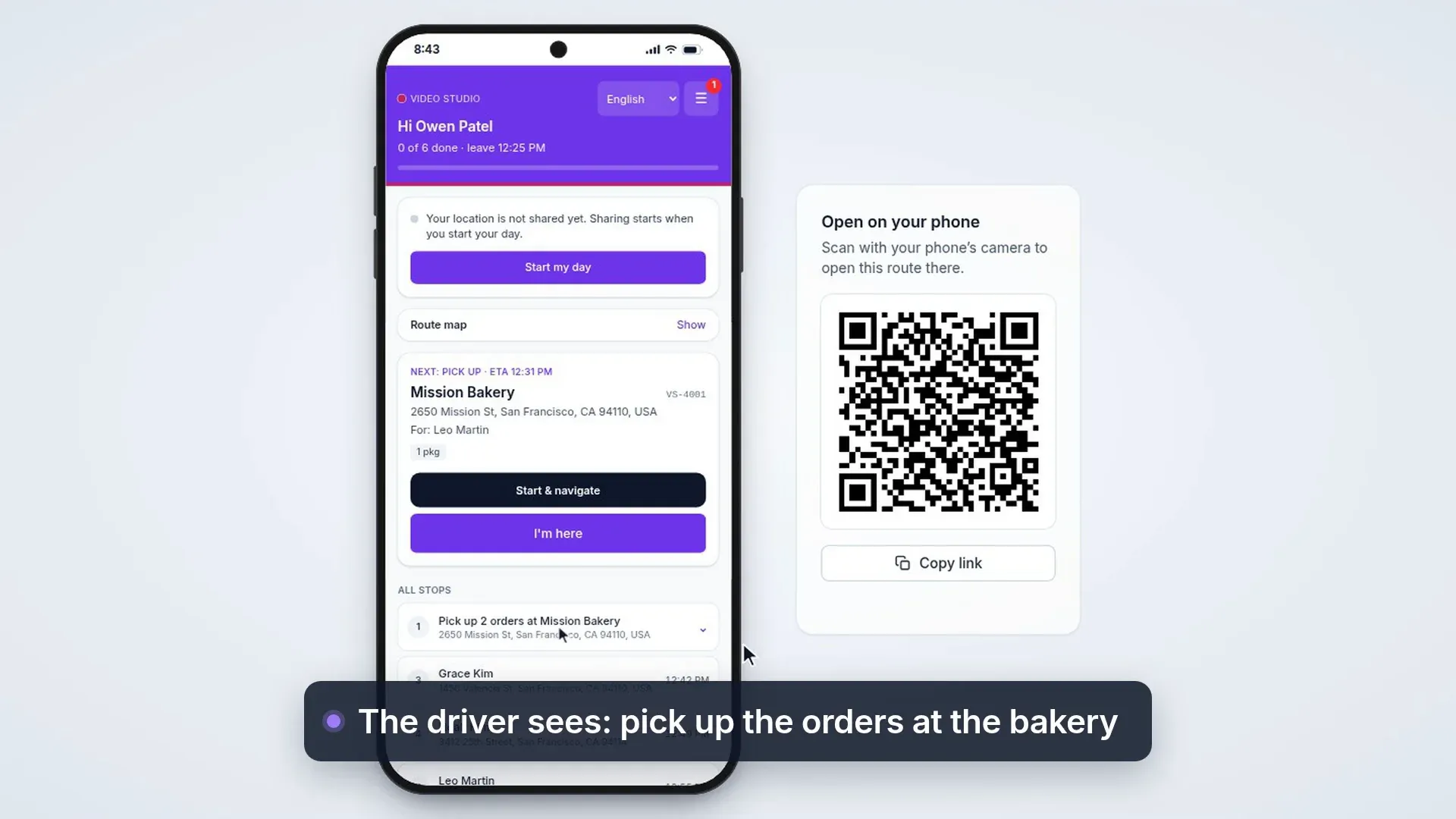
- Several pickups at one place in a row are one visit for the driver: one line (“Pick up 6 orders at …”) and one confirmation for all of them
Planning rules in plain English
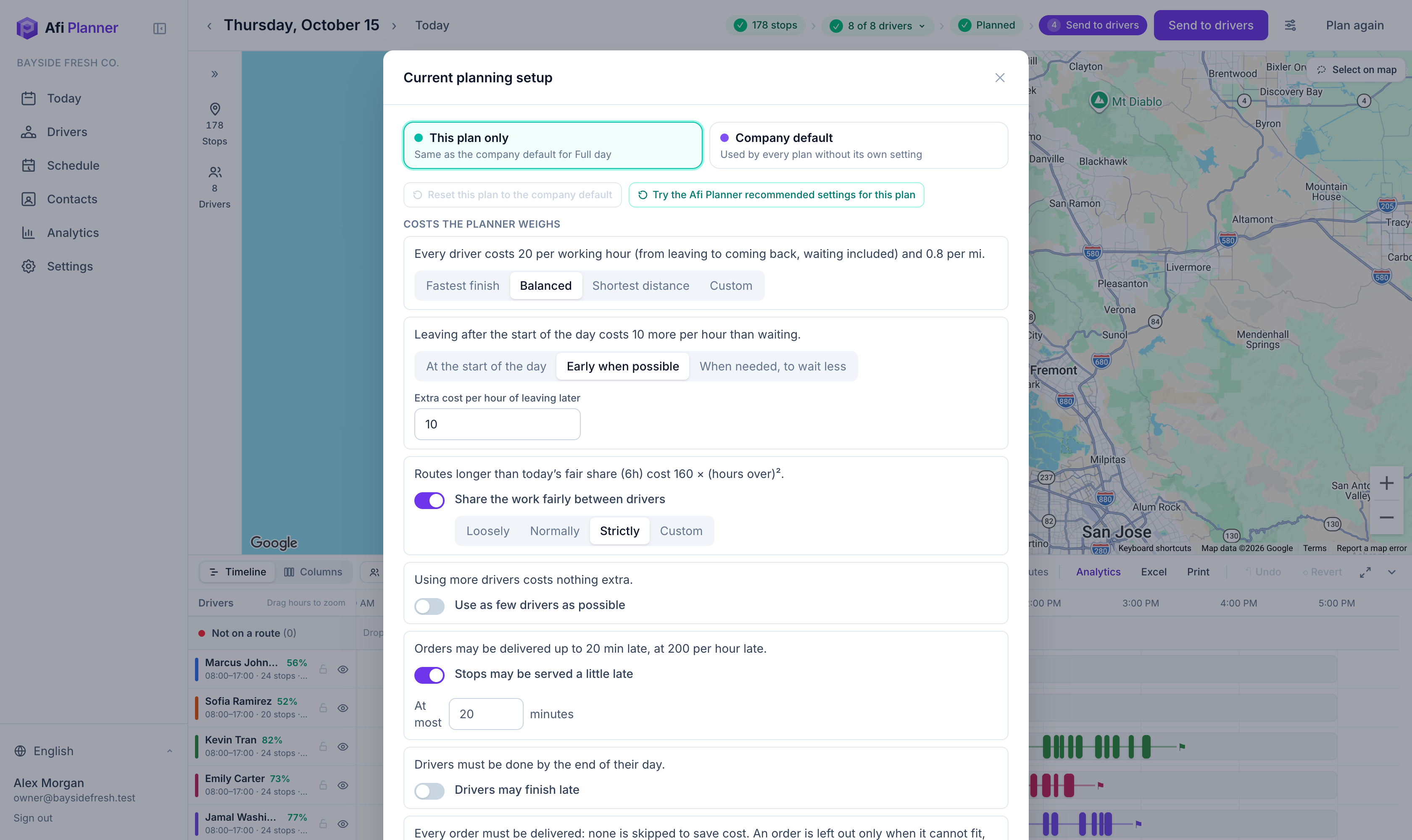
There are no cost matrices or penalty weights to learn. Each rule is a question with a sensible default: can drivers work late, can stops be a little late, should the work be shared fairly? Change them for one day or for the whole company.
- Fastest finish, balanced, or shortest distance
- Fair-share balancing so nobody gets a 10-hour route while someone else is done by noon
- Limits per route: stops, hours or miles
- Traffic margin for busy days
Drivers who know the area
Every route shows how well its driver knows the area: the share of its stops within 820 ft of a delivery they made in the last 60 days. Adding late orders shows the same for each driver (“knows 3/5”). Turn on “Prefer drivers who know the area” and planning gives a stop to a driver who has been there before when that costs little extra.

Your own Google Route Optimization, if you want it
Afi Planner plans on the Afi routing engine out of the box, included in every plan. Companies that already use Google Cloud can ask to plan on Google Route Optimization in their own project instead: grant access to the project and send its ID from Settings. Afi reviews each project before it can be used and turns it on; until then you keep planning on the Afi routing engine. Then test the connection and the project shows as verified.
- Google bills your Google Cloud project directly; those plannings don’t count against your plan limits
- If Google can’t answer for a planning, Afi Planner plans that day on its own engine so routes still go out; that planning counts against your plan like any other
- Switch back to the Afi routing engine at any time; your project stays saved for later
- Afi reviews each Google Cloud project before it can be used
- After a drag, times are worked out at once on the Afi routing engine and the route says “Times estimated”, so Google isn’t billed for every move. “Update times on Google” gets Google’s times for just the routes you changed, in your order: one single-vehicle request per route, billed to your project and not counted against your plan
Frequently asked questions
How long does planning take?
About 40 seconds for a day of 176 stops and 8 drivers with fair sharing on (the default); smaller days are faster. Give planning more time (Thorough or Best) for better routes on bigger days.
Can I change the routes by hand?
Yes. Drag stops between drivers or along the timeline and the times update immediately. Dragging never counts against your plan; Optimize this route re-orders a single route. To move several at once, ⌘/Ctrl + click them (Shift + click picks a whole range) and drag one: the others come along. On a tablet, tap Select on the board’s bar, or press and hold a stop, then tap the others. Take off routes leaves the picked stops on the day, off every route. Driver too far to drag to? Move to… lets you pick the route from a searchable list of drivers, under the same rules as a drag. Lock the routes you like and plan the rest again. You can also give stops to a driver before planning: select them on the map and choose Assign to driver.
Does it work for pickup and delivery?
Yes. An order with a pickup address becomes a pickup and a delivery on the same route, in the right order.
Can we use Google Route Optimization instead?
Yes. If your company has a Google Cloud project, choose Google Route Optimization as the solver in Settings. Google bills your project for those plannings, and they don’t count against your Afi Planner plan.
More features
- Dispatch & live trackingKnow what needs you before your phone ringsLearn more
- Driver appA driver app built for the curb, not the officeLearn more
- Customer trackingFewer “where’s my order?” callsLearn more
- AnalyticsSee how every route really wentLearn more
- Driver pay & timesheetsDriver pay worked out from the routes they droveLearn more
- Integrations & APIConnect your systems in both directionsLearn more
- Import & addressesFrom spreadsheet to map in secondsLearn more
Plan tomorrow’s routes in the next 3 minutes
Start your free 3-month trial. No credit card, no setup call, no installation.