Sending routes to drivers and following the day live
5 steps4 min read
Sending is one click. After that, Afi Planner tells you what needs your attention.
In this guide
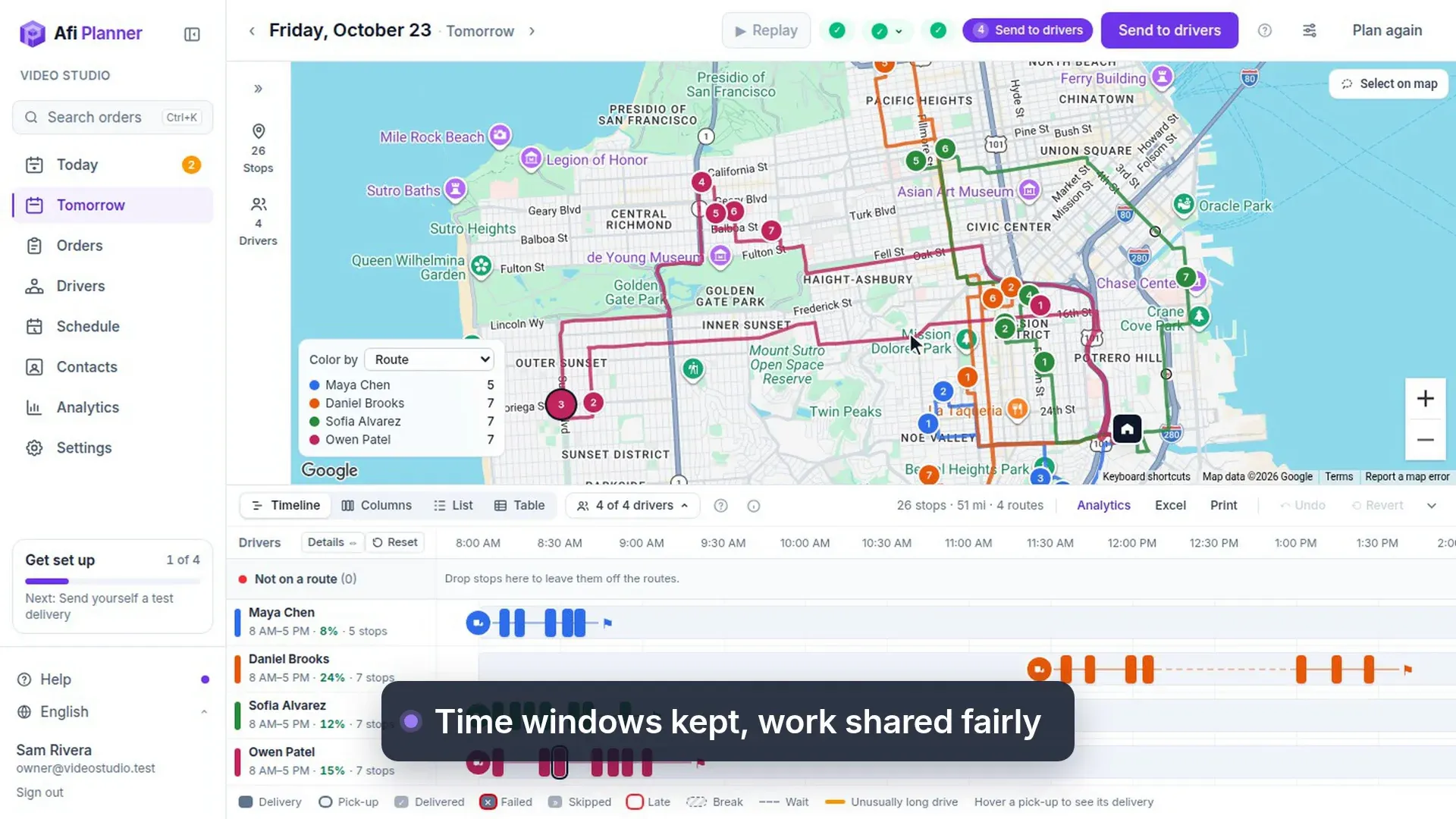
Step 1: Send to drivers
Click Send to drivers. Drivers signed in to the app get a notification; others can use their route link. The header shows who has opened their route.
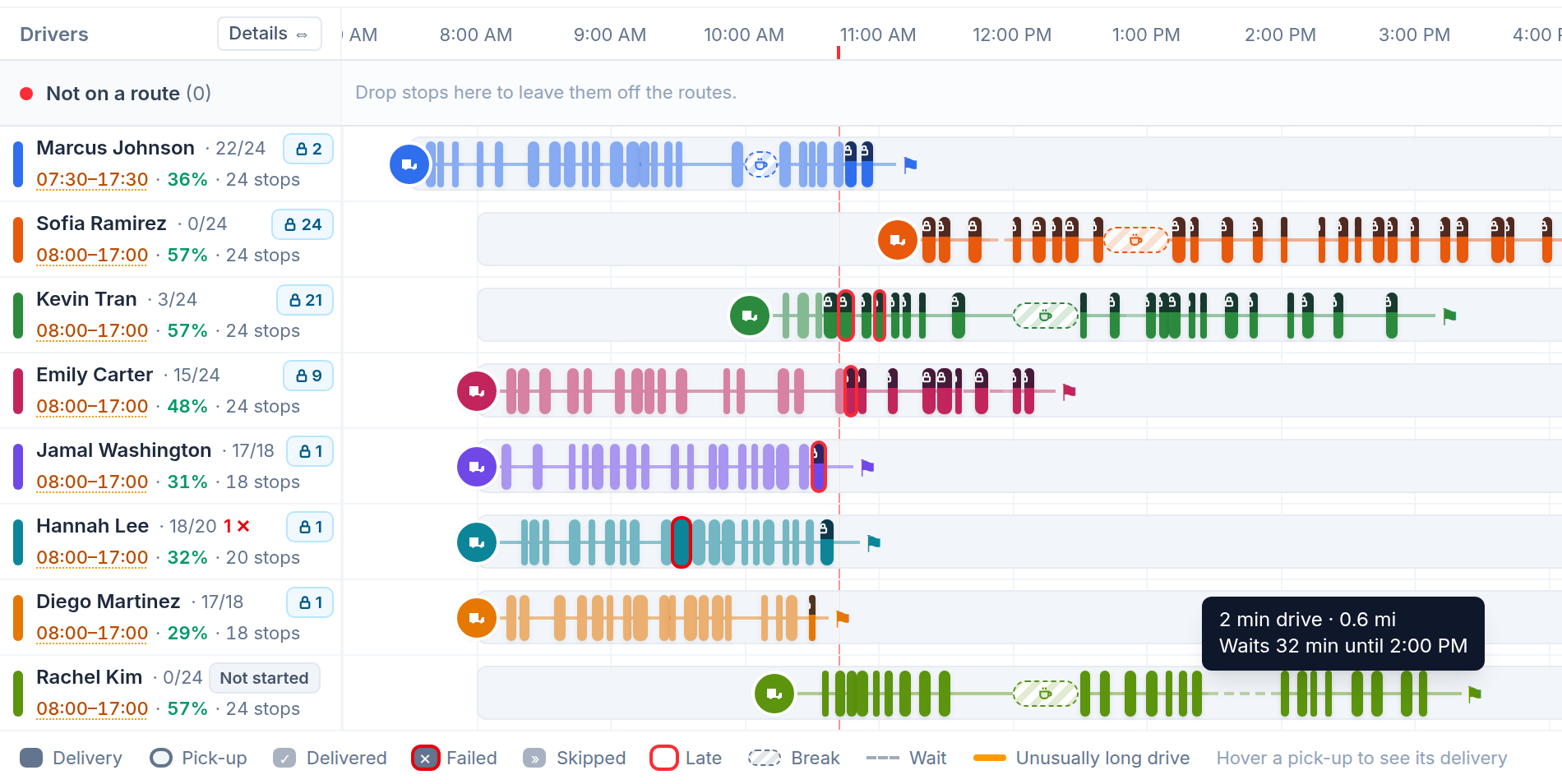
Step 2: Follow the day
Driver positions, stop statuses and live ETAs update on their own. The timeline shows each driver’s progress: solid lines are driving, dashed lines are waiting for a window. Click Details ⇔ in the Drivers header to put the routes side by side, and click a driver’s name to draw their route on top of the map with arrows for the way they drive.
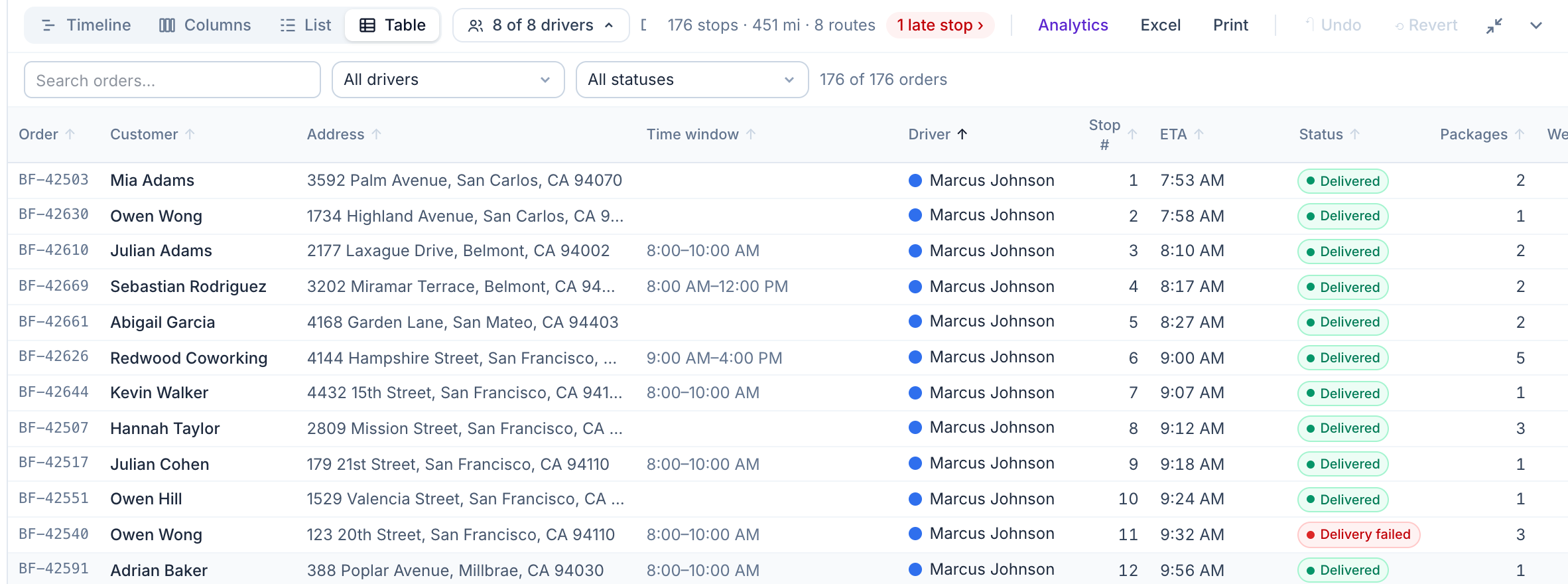
Step 3: Check every order in the table
Switch the board to Table to see every order with its driver, stop number, ETA and status. Sort any column, search, filter by driver or status, and read the totals. Afi Planner remembers the view you picked.
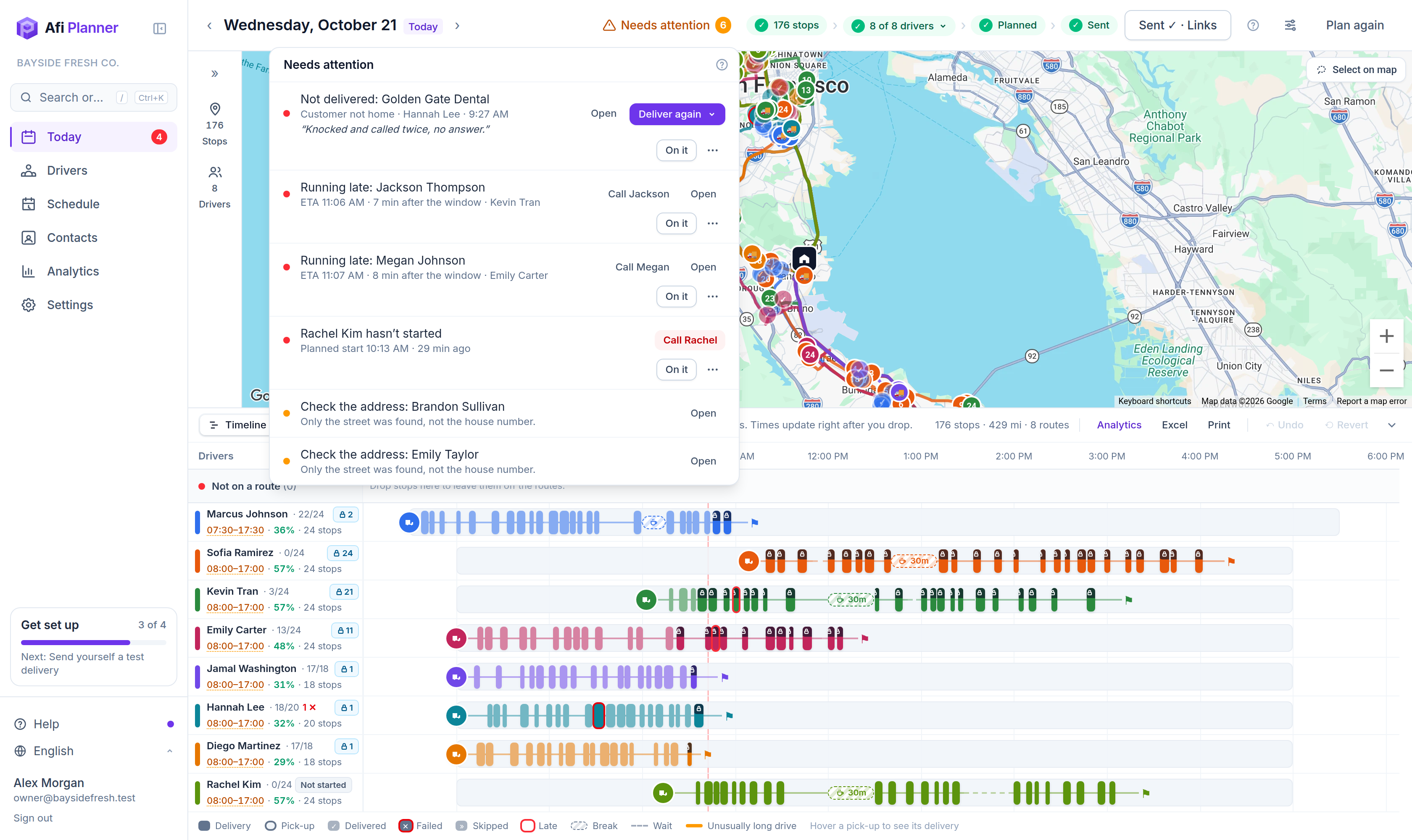
Step 4: Work from Needs attention
Open Needs attention, or click the Live chip at the top of the day, to see failed deliveries, stops at risk of being late, missing proof, routes not opened, phones that went quiet, vans that left without some of their stops and drivers who asked for help. Each item has its next step: answer a Need help with a short message and you see when the driver has seen it. To tell every driver on the road something, use Message drivers.
Step 5: Change routes after sending
Changes after sending stay a draft. When you are done, click Send updates: drivers on the app get one notification with how many stops were added or removed, and every driver sees the updated route. When a driver can’t go on, choose Driver can’t continue… in their route’s ⋯ menu: the rescue driver gets a card saying whose van to meet and which parcels to take, and the board shows “Collect N from …” in amber until they have them, then “Collected” in green.
Related feature
Know what needs you before your phone rings →